9. Motion Control Simulation User Guide
9. Motion Control Simulation User Guide
AimSim provides a sandbox for making basic calls to the A3 robot's motion control system. It serves as a preliminary validation step before running on the physical robot, reducing the risk of damaging the hardware while facilitating the debugging of secondary development logic. Below is the tutorial for deploying the A3 simulation environment.
9.1 Installing AimSim
- The development environment requires Python version = 3.10.*
bash
python3.10 -m pip install aimsim-3.1.3-py3-none-any.whl ## Located under example/AimSim
python3.10 -m pip list | grep aimsim # Check AimSim version
9.2 Running MuJoCo Simulation
bash
aimsim mujoco start    # Launches the MuJoCo simulation. Defaults to the a3_t2d5 model, with iceoryx as the communication backend for motion control.
# Iceoryx is a common communication method in AimRT; it is not described in detail here. Please refer to relevant documentation.
# After running, the terminal will continuously listen to the input stream. Pressing the "l" key will reset the simulation.
9.3 Running motion_control to switch actions and walk
Here, we demonstrate the simulation usage by having the robot stand up and walk. For other interfaces, please refer to the motion control interface documentation and use the provided example scripts.
bash
./example/AimSim/mc/script/motion_control/start_motion_control.sh     # Start the Agibot motion control module
# Switch actions according to the motion control state machine diagram. Here, we take entering "motion" mode as an example.
./example/mc/S_SetAction.py # Switch to get_up to make the robot stand up
./example/mc/S_SetAction.py # Switch to motion
./example/mc/walk.py # Make the robot walk
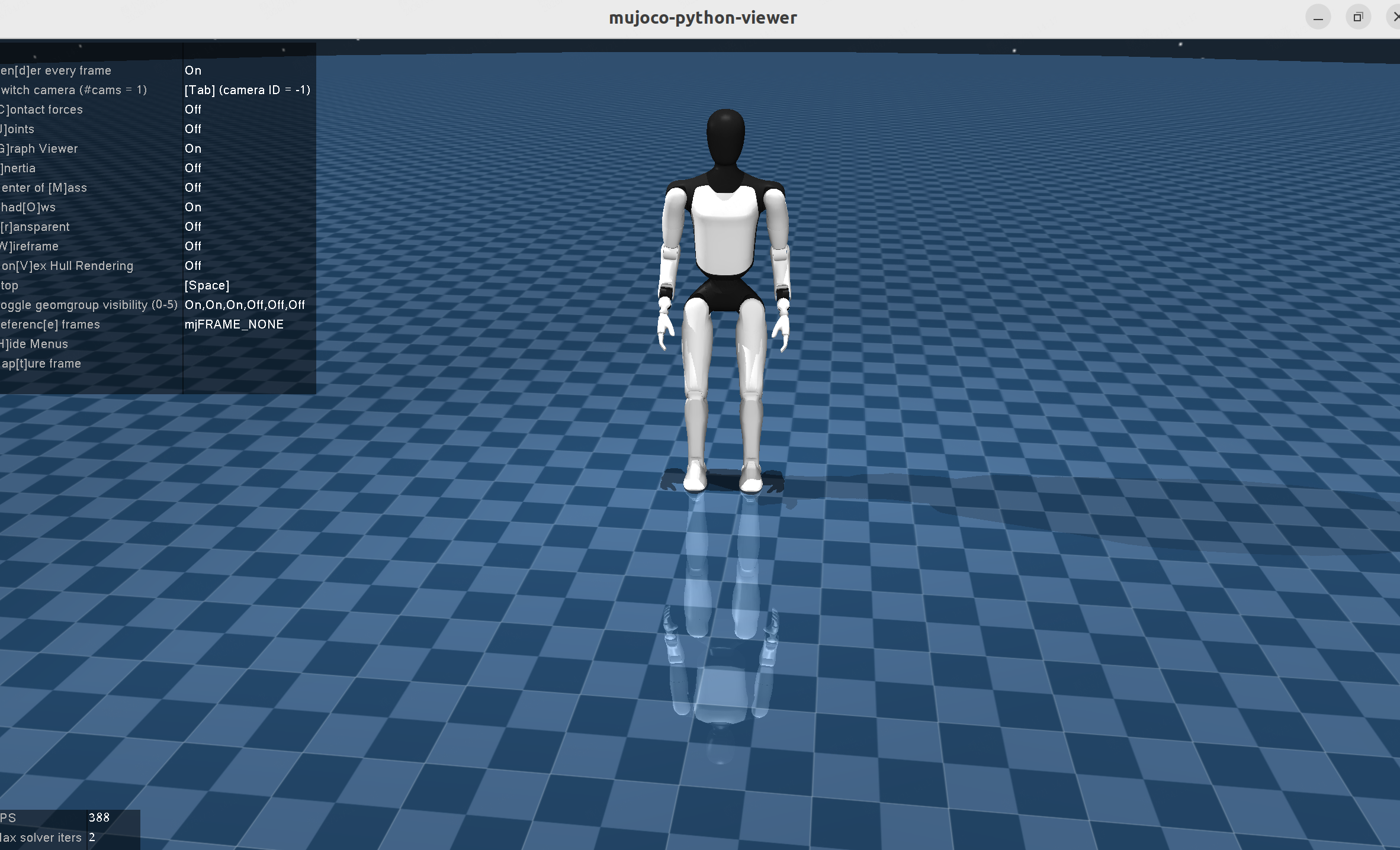
9.5 Common MuJoCo Operations
| 操作 | 效果 |
|---|---|
| Hold Left Mouse Button + Drag | Rotate View |
| Scroll Wheel | Zoom Scene In/Out |
| Spacebar | Pause Simulation |
| alt | Hide Floating Window |
| Type "l" in the terminal running mujoco_simulator | Reset the robot to its initial position via loadkey |
| Double-click to select + Hold Ctrl + Hold Left Mouse Button + Drag | Apply force to the selected robot part |
9.6 Modifying MuJoCo Configuration
The simulation environment supports selecting different robots, ros_domain_id, or communication backends.
bash
aimsim mujoco init-config --user-config-path {user_path}  # Prepare configuration files to /user_path

# Select model or customize ros_domain_id
├── mujoco
    ├── config_mujoco.yaml                       # Select model or customize ros_domain_id
    ├── cfg
        ├── raise_a3_t2d5
            ├── mujoco_simulator.yaml            # Generally does not need modification
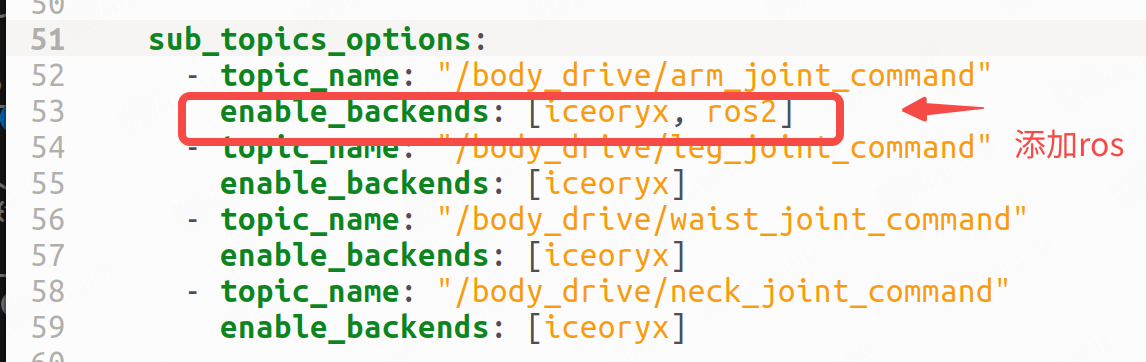
            ├── mujoco_simulator_cfg_sil.yaml    # Can modify the communication backend with motion control (usually iceoryx or ros2, default is iceoryx)
        ├── raise_a3_t2d0
            ├── mujoco_simulator.yaml
            ├── mujoco_simulator_cfg_sil.yaml
After modification, run aimsim mujoco start --user-config-path {user_path} for changes to take effect.
Adding ROS communication method is as follows: